
In my post of November 21, 2018 (You Can (Ac)Count On Me!), I explained that with Windows 10, you can either use a Microsoft account or a local account. I also pointed out that with a local account, you do not have to use a password but with a Microsoft account, you do.
Recently, I’ve received an unusual amount of calls from people who have lost/forgotten their password. They have found themselves locked out with no way to access their computer info. Let’s look at how you can prepare for this situation, should it happen to you.
The first thing you need to know is: are you using a local account or a Microsoft account? Here’s how to find out:
- Click on the Windows Start Menu.
- Click on your user name.
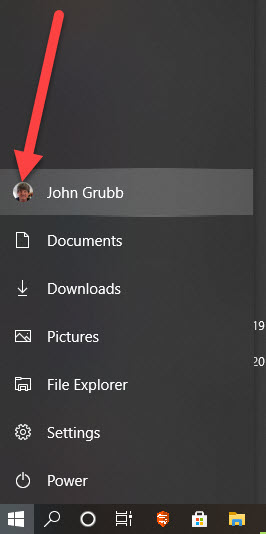
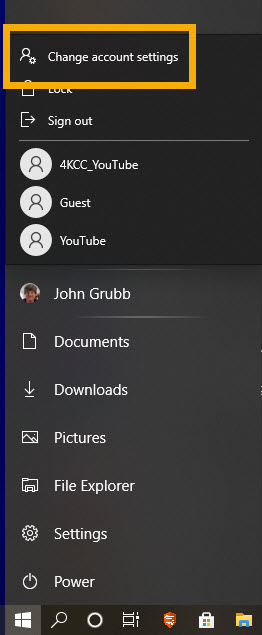
- Select “Change account settings.”
- When the new window opens, make sure you are on the “Your info” tab.
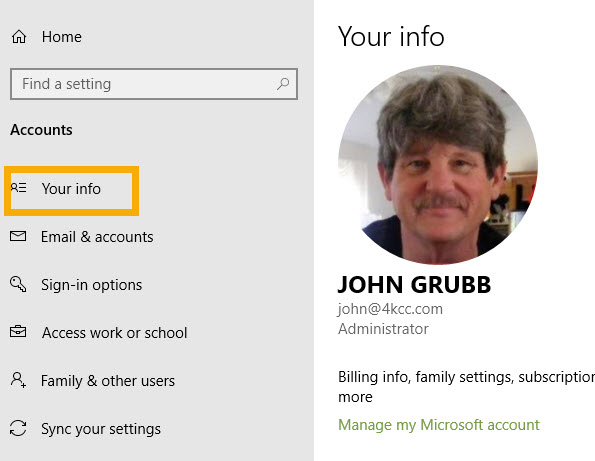
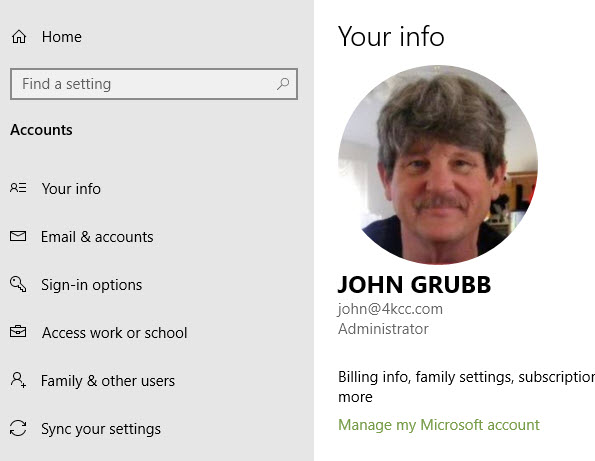
- On the right-hand side of the window, look for “Manage my Microsoft account.”
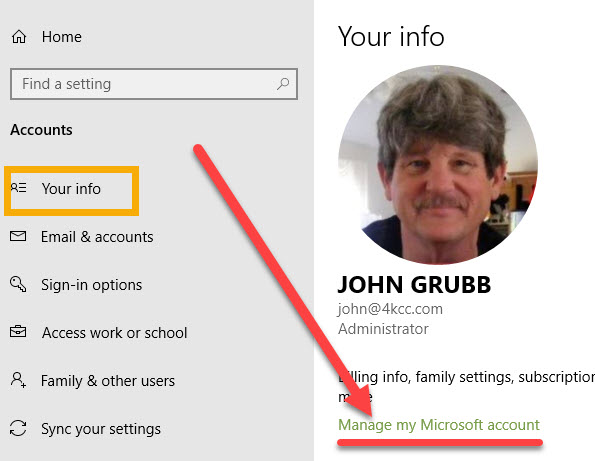
If you find “Manage my Microsoft account,” then you are NOT using a local account. If you get locked out of this computer, you can use any computing device to fix the issue. You simply go to microsoft.com and reset your password – “Forgot password” option.

It’s very important that your recovery information is up-to-date. If you’ve changed phone numbers or email addresses, make those changes in your Microsoft account BEFORE you get locked out.
Now, let’s suppose you don’t find “Manage my Microsoft account.” Rather, you find “Local account” and “Sign in with a Microsoft account instead.”
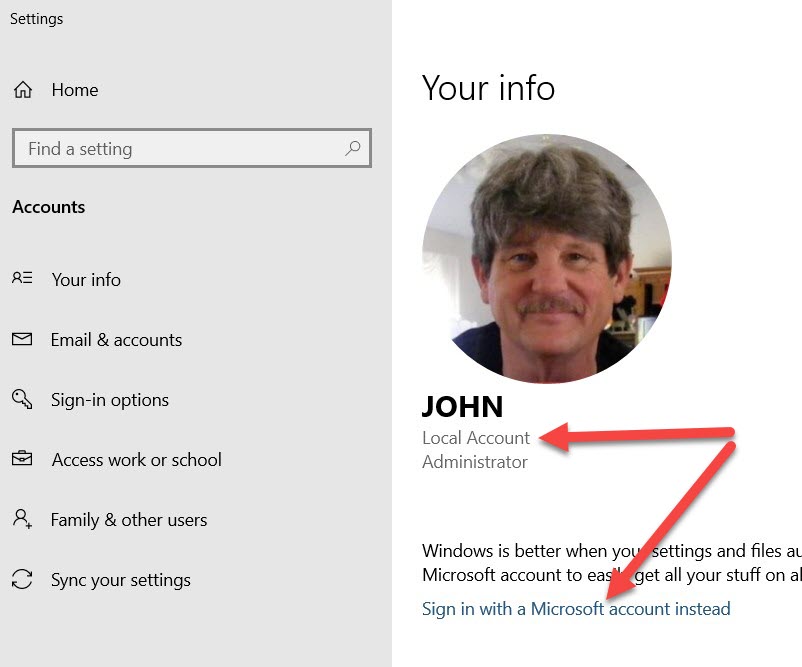
Obviously, you are using a local account. If you are using a local account with a password, you need to be able to recover the password should you forget it. (Trust me, that happens way more often than you would think.) To prepare yourself for recovering your password, you need to set up the local account security questions and answers.
Once again, go to the Start Menu, User Name, then Sign-in options. On the right, find Password.
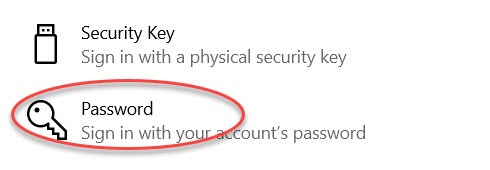
- Click on Password.
- Select “Update your security questions.”
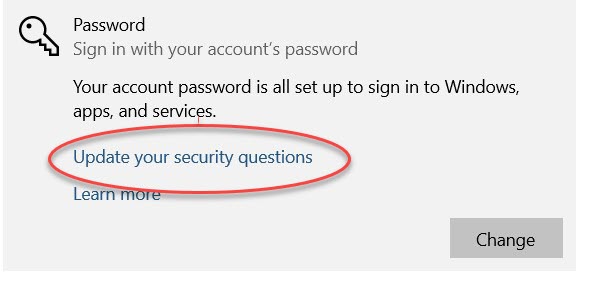
- Type in your current local password then choose “OK.”
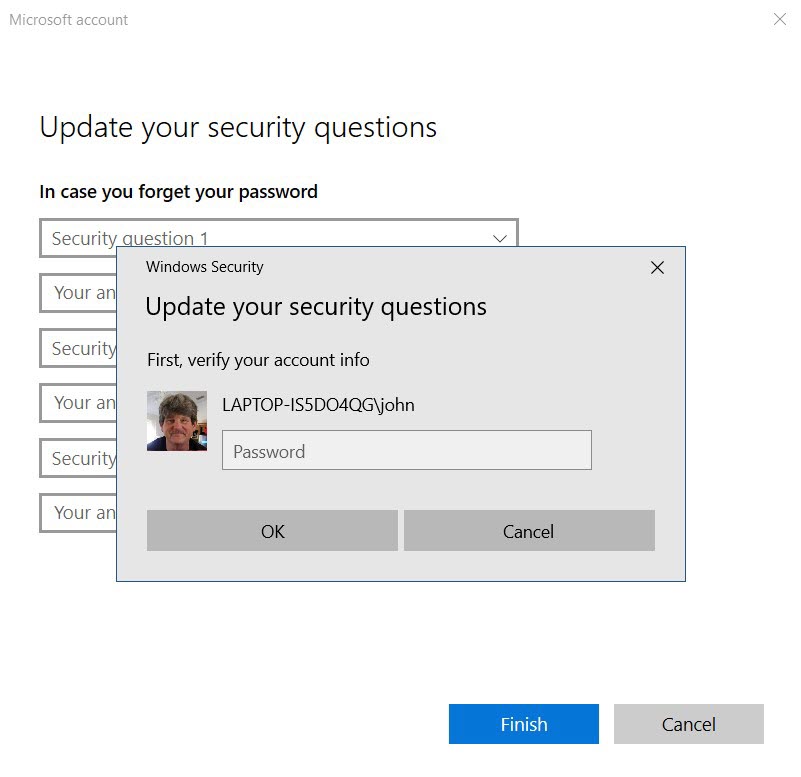
- Click each of the three security questions and answer them. Remember, you don’t have to answer truthfully, you just have to know the answers you give. (Why would you want to lie about an answer? Here’s an example: one of the questions asks: “What’s the name of the city where you were born?” It wouldn’t be difficult for someone to find out that I was born in Harrisburg (PA). If I answer truthfully, I’ve given a hacker the opportunity to be one step closer to breaking into my account.)
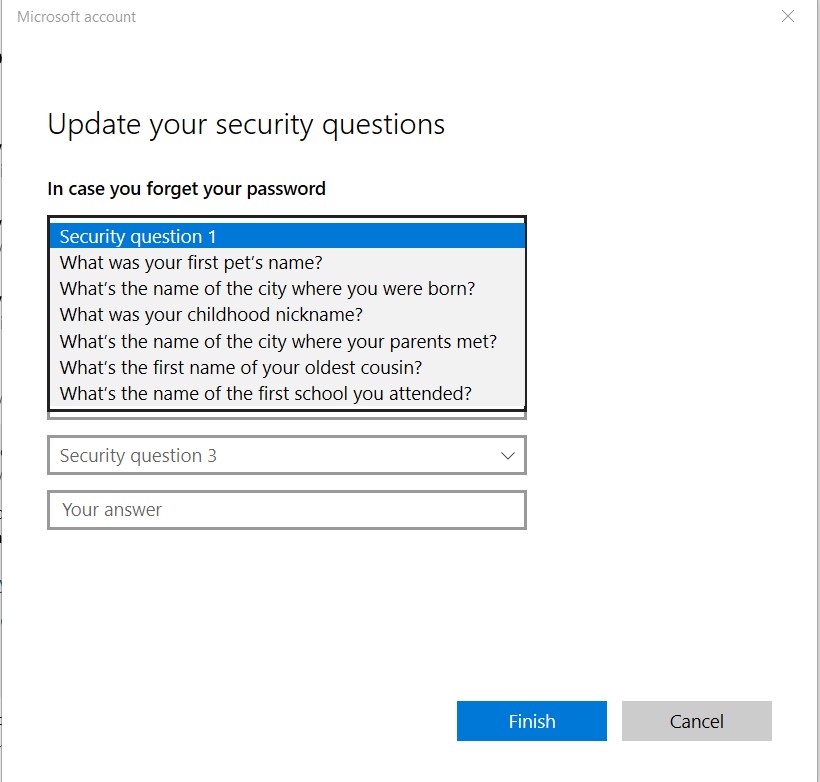
Once you’ve answered all three questions, click FINISH.
Now, let’s look at what happens if you try to log in to your computer and you’ve forgotten your password.
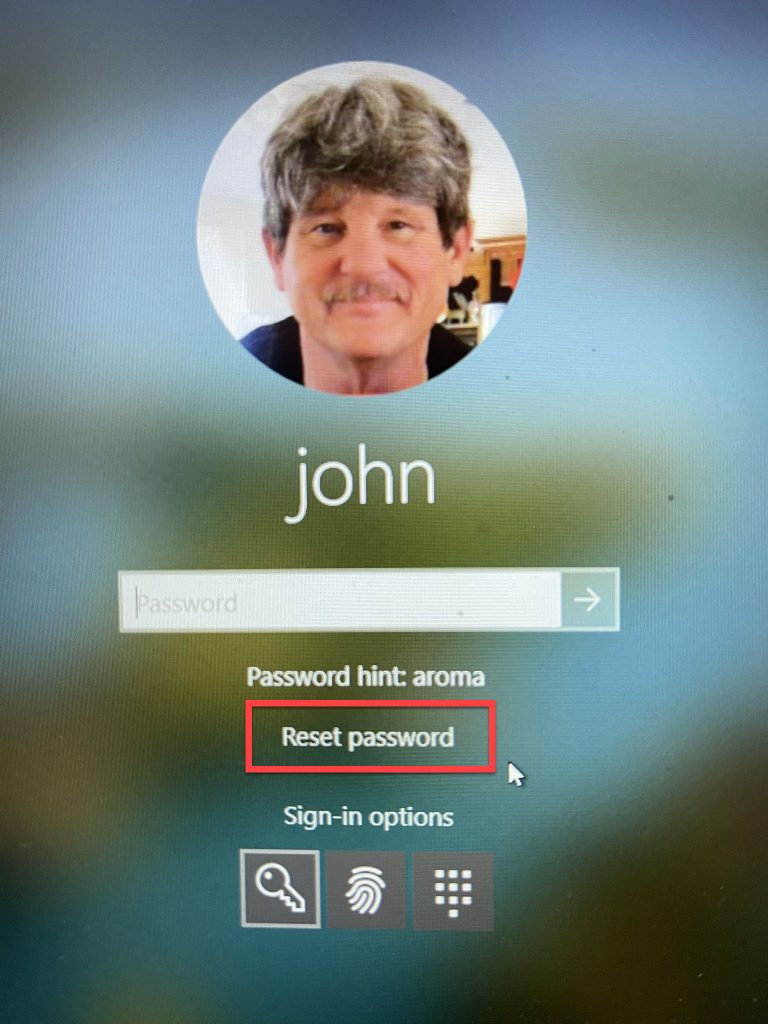
After three failed attempts, I get the option to “Reset your password.”
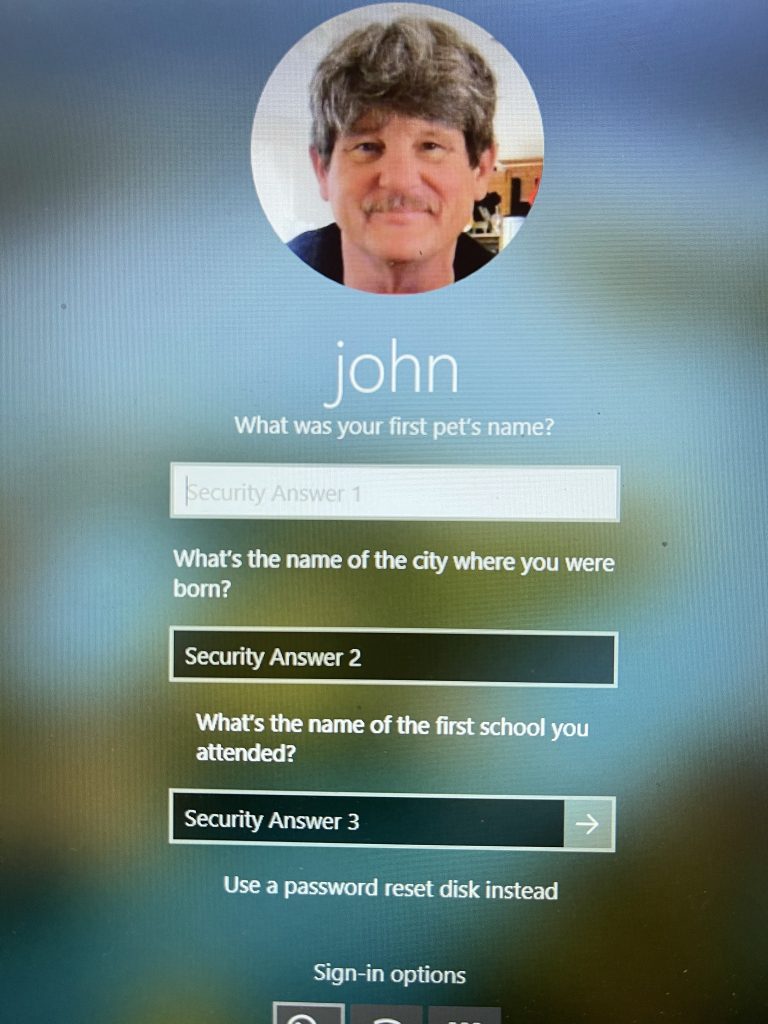
When I click the reset option, my security questions appear and all I have to do is answer them correctly.
That’s it for understanding the difference between a Microsoft account and a local one and how to be able to log in if you forget your password. By the way, if you aren’t able to remove/change your password, we do have special software we can use to correct the problem. However, we have to have physical access to the computer and there is a charge for password removal. Questions? Feel free to use the comment area below.