
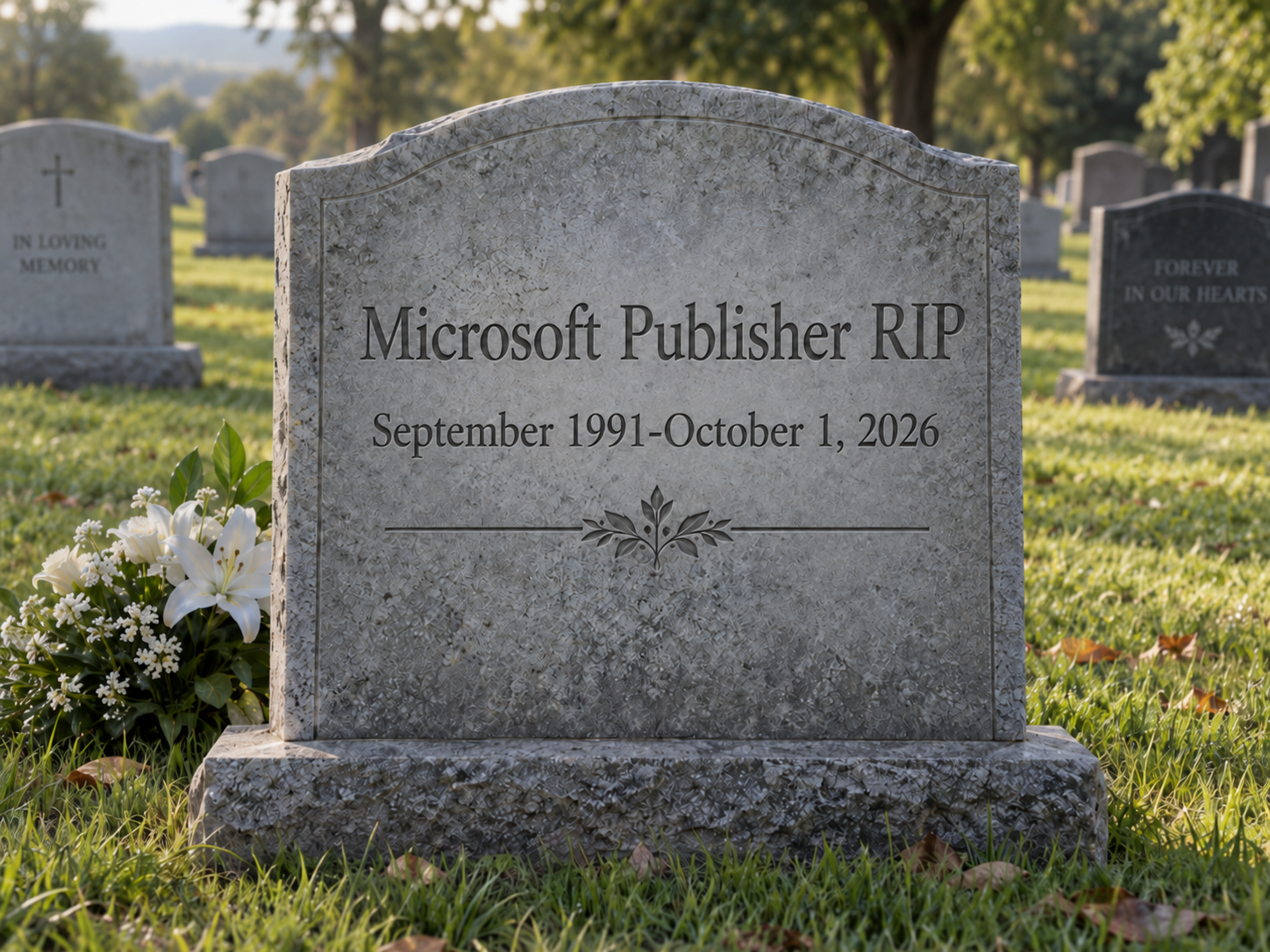
Microsoft Publisher dies on October 1, 2026. If your church bulletin, your newsletter, or twenty years of flyers live in .pub files, you have less than two weeks to do something about it.
Microsoft Publisher reaches end of life in October 2026. Microsoft 365 subscribers will not be able to access Publisher after Oct 1, 2026. Support for the perpetual version ends October 13, 2026, when Office LTSC 2021 and Consumer Office 2021 reach end of support. (Microsoft Support)
That first date is the one that matters for most people. If you get Office through a Microsoft 365 subscription — which is nearly everybody now — Publisher disappears from your machine, and you will no longer be able to open or edit your Publisher files using Microsoft Publisher.
Not “it stops getting updates.” Not “it’s deprecated but still works.” It goes away, and your files go with it.
Why This is Worse Than a Normal Retirement
When Microsoft killed off other products, the files usually survived because something else could read them. .pub isn’t like that. It’s a proprietary format that Microsoft never fully documented, and outside of Publisher itself, support ranges from partial to nonexistent.
The University of Minnesota’s IT department put it bluntly: while some third-party applications purport to support this format, none of them offer complete compatibility. (IT@UMN)
Here’s How to Save Your Files Before Publisher Dies
So the plan is simple, and it has two halves:
- Convert everything to PDF now so you can still read, print, and send it in 2030.
- Pick a new tool and rebuild the handful of documents you actually still edit.
Let’s do the first part, because it’s the one with a deadline.
Step 1: Find every .pub file you own
Microsoft’s own advice here is charmingly casual — a file search for “.Pub” on your PC, OneDrive, or SharePoint can help you locate your Publisher files. That’s fine if you have nine files. If you’ve been running a church office since 2004, you need a real inventory.
Open Windows PowerShell (not PowerShell 7 — stick with the built-in Windows PowerShell 5.1 for everything in this article, because Office automation behaves better there). Hit Start, type powershell, press Enter.
Copy and paste this exactly into PowerShell. If you get a warning about pasting multiple lines, just hit “Paste anyway.”
More Than One User?
This will only search the User currently logged in. (Not a problem if there’s only one user.) Want to search the entire hard drive? Paste this instead, followed by the Enter key. Note: this may take several minutes – just let it run.
One warning about OneDrive. If you use Files On-Demand, some of your files are cloud placeholders, not real files on disk. Scanning them can trigger downloads, and converting them definitely will. If you have a lot of cloud-only files, right-click your OneDrive folder and choose “Always keep on this device” before you start, and make sure you have the free space.
Don’t forget to check network drives, old external hard drives, and that desktop in the back office nobody logs into anymore.
Step 2: Batch convert them all to PDF
Microsoft does publish a sample script for this — a sample PowerShell script that can be used as a reference for how to individually or bulk export Publisher files to PDF or other export formats. It works, but plenty of people have gotten stuck on execution policy, working directories, and file paths just trying to launch it.
Here’s a self-contained version that asks you nothing and logs what it did.
Before you run it:
Publisher must still be installed and working on this computer. The script works by quietly driving Publisher itself through Windows’ COM automation — it’s doing “File → Save As → PDF” a few hundred times for you. Which is exactly why this only works before October 1st. After that, there’s no Publisher to drive.
Open Notepad, paste this in, and save it to your Desktop as Convert-PubToPdf.ps1 (in the Save dialog, set “Save as type” to All Files, or Notepad will name it .ps1.txt):
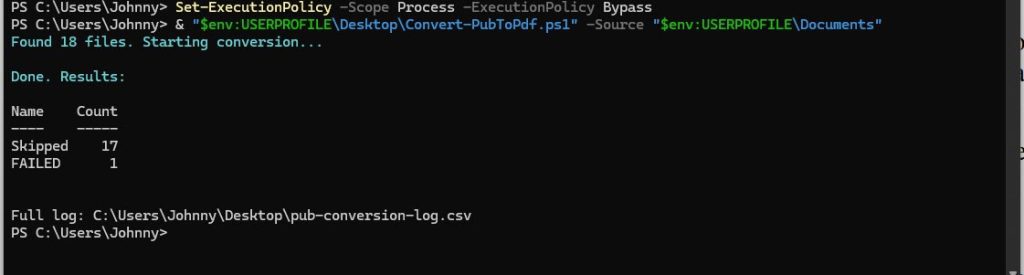
Now open Windows PowerShell and run these two lines:
Change the -Source path to point wherever your files actually live: -Source “D:\ChurchOffice”, -Source “$env:USERPROFILE\OneDrive”, whatever the inventory told you.
Each PDF lands right next to its original .pub file, same name. Your originals are never touched. If a PDF with that name already exists, the script skips it rather than overwriting — so you can safely run it twice.
Test it on a folder of five files first.
Confirm the PDFs look right, then let it loose on everything.
What to Expect While it Runs
- It’s slow. Figure a few seconds per file. Several hundred files is a lunch break. Start it and walk away.
- Publisher may flash windows or throw dialogs. Don’t run this right before you leave for the day — a modal dialog waiting on a mouse click will stall the whole batch. Run it when you can glance at the screen occasionally.
- Check the log. pub-conversion-log.csv on your Desktop lists every file and whether it converted. Anything marked FAILED needs to be opened by hand. Usual culprits: password-protected files, corrupt files, and file paths longer than 260 characters.
- Spot-check the output. Open a dozen PDFs, including your ugliest, most complicated one. Watch for text that’s shifted or reflowed — that’s font substitution, where the layout was built around a font this machine no longer has. If you see it, that document needs manual attention.
Step 3: Decide what you actually need to edit
A PDF preserves a document. It doesn’t let you update next year’s dates and reprint it. So go back to your inventory, look at that “last modified” column, and separate the archive from the living documents.
For the living ones, Microsoft’s official suggestion is to convert a Publisher file to PDF and then open that PDF in Word. It works, sort of. Microsoft’s own caveat is the honest part: the converted Word document will be optimized for text editing, so its layout may vary from the original PDF — particularly if the document includes many graphics.
Translation: for a text-heavy newsletter, this is fine. For a tri-fold brochure with photos and text boxes everywhere, you’ll get a mess, and rebuilding it from scratch in a real tool will be faster than fixing the import.
My advice: while Publisher still opens, put your five or six recurring documents side by side on screen and rebuild them once in whatever tool you’re moving to. Do it now, with the original in front of you, instead of in January from a PDF.
The best alternatives, honestly ranked
| Tool | Cost | Best For | Watch Out For |
|---|---|---|---|
| Word | Already have it | Newsletters, labels, envelopes, letterhead, mail merge | Layout fights you on anything design-heavy |
| PowerPoint | Already have it | Flyers, posters, banners, signs | Not built for multi-page documents |
| Canva | Free; Pro free for eligible nonprofits | Volunteers, social graphics, quick print pieces | Browser-based; less precise for press work |
| Affinity | Free (Canva account required | Real page layout: directories, program books, booklets | Steeper learning curve |
| Scribus | Free, Open Source | Press-ready CMYK work, no accounts | Dated interface, steep curve |
| Adobe InDesign | Subscription | Subscription Professional design shops | Overkill for most small orgs |
| Libre Office Draw | Free | Emergency .pub viewer after Publisher is gone | Imperfect import; not a real replacement |
Word
Microsoft’s recommended landing spot for most Publisher work, and for good reason. It’s what they point you to for newsletters, envelopes, labels, letterhead, business forms, and folded projects. If you’re doing a monthly newsletter with mail merge, Word is genuinely the right answer, and it’s already on your machine. Text boxes and anchored images get you most of the way to Publisher’s layout behavior.
PowerPoint
Underrated for this. Microsoft recommends it for banners, signs, and posters. Set the slide size to your exact finished dimensions, and you have a free-floating canvas where everything is a draggable object — which is much closer to how Publisher actually felt than Word is. For a one-page flyer or a poster, start here.
Canva
The pragmatic pick for most churches and small nonprofits. Browser-based, enormous template library, and your volunteer coordinator can learn it in an afternoon without installing anything. If you’re a registered nonprofit, apply for the grant: Canva for Nonprofits gives you and your team access to all the premium features of Canva Pro, plus team and collaboration tools, for free. Worth the paperwork.
Affinity (by Canva)
The sleeper here, and a genuine gift of timing. Canva bought Serif and folded Affinity Photo, Designer, and Publisher into one application — and the whole thing is now free to download and use, with a free Canva account required to sign in but no subscription for the design tools themselves.
This is real professional page-layout software: master pages, facing pages, proper typography, press-ready export. If you produce anything longer than a few pages — a directory, a program book, a cookbook — this is the tool to learn. It’s a steeper climb than Canva, but it costs nothing and it won’t run out of ceiling.
Scribus
Free and open source, cross-platform, and it’s been the go-to Publisher refugee camp for years. Powerful for press-ready work. The interface shows its age and the learning curve is real. Worth a look if you’re allergic to accounts and cloud logins.
Adobe InDesign
The professional standard, and overkill for almost everyone reading this. If nobody at your organization is a designer by trade, don’t.
LibreOffice Draw
Not really a Publisher replacement, but keep it in your back pocket for a different reason: it has an import filter that opens .pub files. Imperfectly — expect layout drift and pagination oddities — but if you discover a stray Publisher file in 2028 and have no way to see inside it, this may be your only door. Install it now, before you need it.
A note on “PUB converter” websites:
Microsoft’s own warning about third-party converters is fair — these services vary in quality and capabilities, and Microsoft does not provide support for them. Add to that: you’d be uploading your organization’s documents to a stranger’s server, often with file size limits that make bulk work impractical. You have Publisher on your machine right now. Use it while it’s there.
Your checklist for the next two weeks
- Run the inventory script. Find out how many files you’re actually dealing with.
- Check network drives, external drives, and any old PCs still sitting in a closet.
- Test the conversion script on a small folder. Verify the PDFs.
- Run it against everything. Check the log. Handle the failures by hand.
- Back up the PDFs and the original .pub files somewhere safe. Keep the originals — if you ever get access to a machine with Publisher again, you’ll want them.
- Pick your new tool.
- Rebuild your recurring documents while Publisher can still open the originals.
If you have a perpetual Office 2021 license, you get a small reprieve — the app will still install and run past the date, you just lose support. Don’t let that turn into procrastination. An unsupported, unpatched Office install tied to one aging computer is a single hard drive failure away from the same problem, just with less warning.
The deadline is Oct 1, 2026. The work is a couple of hours. Do it this week.
Questions about your specific setup? That’s what I do: [email protected]